payload-starter
Next.js 16 and Payload 3 starter with PostgreSQL, role-based admin access, shadcn/ui and SEO helpers
100
v3
Next.js
Updated 4 months agoPayload CMS and Next.js example using Clerk for authentication, role-based access and user sync
An example project that connects Payload CMS with Clerk authentication in a Next.js app. Roles such as super-admin, admin and editor are kept in Clerk public metadata, and a webhook endpoint syncs Clerk user events. It supports SQLite or PostgreSQL, and requires a Clerk application plus environment variables for Clerk and Payload.
Payload CMS and Clerk example
This repository is a GitHub template: create your own copy of it in one click.
Create a repository from this templateThis is an example for Payload CMS and Clerk integration.
Part 2 - Advanced integration
Payload CMS and Clerk - advanced integration
https://www.youtube.com/watch?v=egKaeOuddFA
Source code for the video is in the part-2 branch: https://github.com/DanailMinchev/payload-clerk-example/tree/feat/part-2
Part 1 - Basic integration
https://www.youtube.com/watch?v=7PNGNqqFlu0
Source code for the video is in the part-1 branch: https://github.com/DanailMinchev/payload-clerk-example/tree/feat/part-1
Install dependencies:
npm ci
Enable Email as Sign in option.
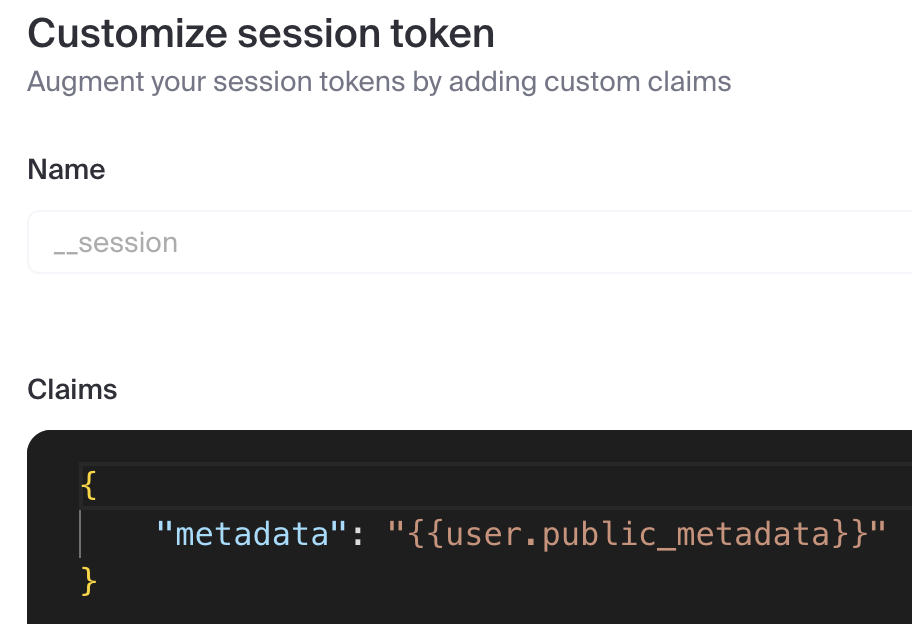
The setup is described in details in the videos above, but here are the settings for reference:
{
  "metadata": "{{user.public_metadata}}"
}
Copy the env.example file into .env.local file.
Set Clerk environment variables documentation:
NEXT_PUBLIC_CLERK_PUBLISHABLE_KEY
Your Clerk app's Publishable Key, which you can find in the Clerk Dashboard. It will be prefixed with pktest in development instances and pklive in production instances.
CLERK_SECRET_KEY
Your Clerk app's Secret Key, which you can find in the Clerk Dashboard. It will be prefixed with sktest in development instances and sklive in production instances. Do not expose this on the frontend with a public environment variable.
SIGNING_SECRET
In case you are going to use Webhooks, you will need to set Signing Secret.
PAYLOAD_SECRET
This environmental variable acts as your secret key. It's paramount that you ensure its value is both secure and strong, as it's integral to the encryption and decryption process.
DATABASE_URI
This is the database connection string. Uncomment DATABASE_URI for SQLite or PostgreSQL.
PostgreSQL you can use Docker:docker compose up
and edit the src/payload.config.ts file:
Uncomment:
import { postgresAdapter } from "@payloadcms/db-postgres";
Comment / delete:
import { sqliteAdapter } from "@payloadcms/db-sqlite";
Uncomment:
  // PostgreSQL
db: postgresAdapter({
  pool: {
    connectionString: process.env.DATABASE_URI || "",
  },
}),
Comment / delete:
  // SQLite
db: sqliteAdapter({
  client: {
    url: process.env.DATABASE_URI || "",
  },
}),
Please set the environment variables accordingly with their passwords in your .env.local file:
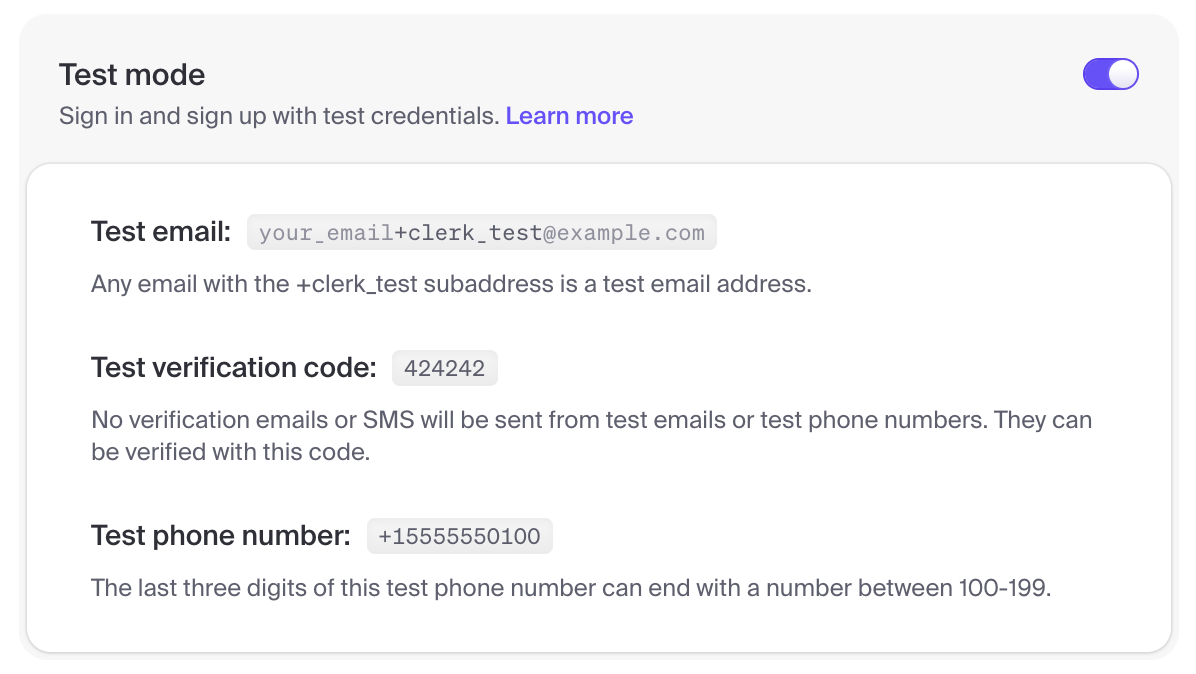
E2E_CLERK_ALL_ROLES_USER_EMAIL=all-roles-1+clerk_test@example.com
E2E_CLERK_ALL_ROLES_USER_PASSWORD=
E2E_CLERK_ALL_ROLES_USER_PHONE=+19735550101

E2E_CLERK_SUPER_ADMIN_USER_EMAIL=super-admin-1+clerk_test@example.com
E2E_CLERK_SUPER_ADMIN_USER_PASSWORD=
E2E_CLERK_SUPER_ADMIN_USER_PHONE=+19735550102

[email protected]
E2E_CLERK_ADMIN_USER_PASSWORD=
E2E_CLERK_ADMIN_USER_PHONE=+19735550103

[email protected]
E2E_CLERK_EDITOR_USER_PASSWORD=
E2E_CLERK_EDITOR_USER_PHONE=+19735550104

[email protected]
E2E_CLERK_AUTHENTICATED_USER_PASSWORD=
E2E_CLERK_AUTHENTICATED_USER_PHONE=+19735550105
The above users are using test emails and test phone numbers as described in Test emails and phones.
If you want to use phone numbers, you need to enable "Phone number" in the Clerk's dashboard, otherwise seed endpoint will not work.
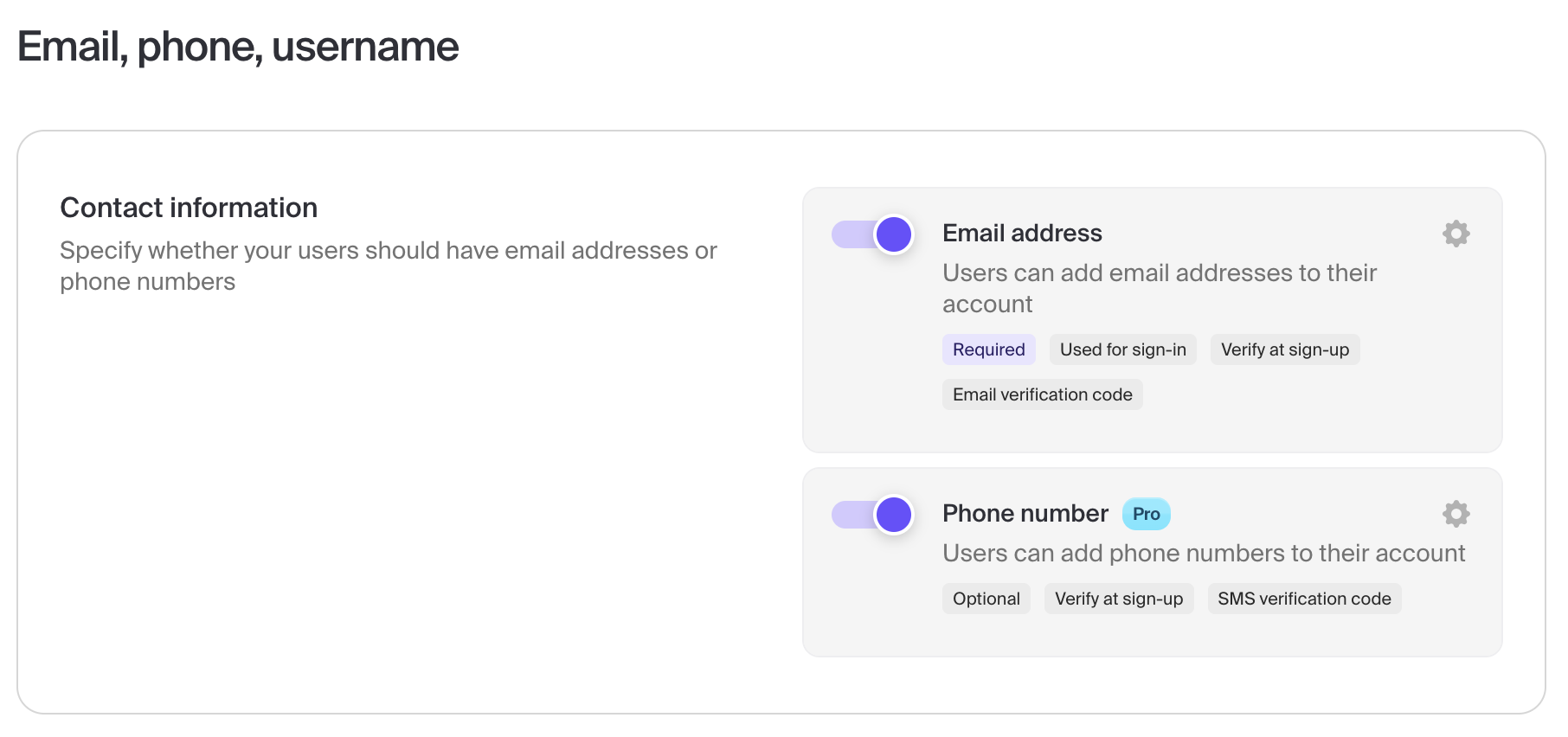
Otherwise, leave the E2E_CLERK_*_USER_PHONE environment variables empty.
E2E users.You can register the E2E users from the above point manually or automatically using the GET /api/app/seed endpoint.
Run the application: npm run dev
Registering automatically
Invoke / navigate to http://localhost:3000/api/app/seed endpoint.
Observe the console for logs.
WARNING: the endpoint will delete your existing data
Registering manually
You should register your [email protected] user in Clerk manually and set the super-admin role.
The [email protected] user should have following public metadata:
{
  "roles": ["super-admin"]
}
and you should set the rest of the user roles via the admin dashboard as follows:
npm run dev
Open http://localhost:3000 with your browser to see the result.
Please refer to the official documentation - Sync Clerk data to your app with webhooks.
The app exposes POST /api/clerk/webhooks endpoint which can be configured in
the Clerk Dashboard.
Environment variables:
SIGNING_SECRET : "Signing Secret" from the Clerk Dashboard.Currently, the webhooks endpoint is listening on the following events:
user.createduser.updateduser.deletedPlease follow the official documentation - Setup & Installation
To run ngrok in Docker (macOS):
docker run -it -e NGROK_AUTHTOKEN={NGROK_AUTHTOKEN} ngrok/ngrok:latest http host.docker.internal:3000 --url={NGROK_DOMAIN}
To run ngrok in Docker (other OS):
docker run -it -e NGROK_AUTHTOKEN={NGROK_AUTHTOKEN} ngrok/ngrok:latest http 3000 --url={NGROK_DOMAIN}
To run ngrok using native binary:
ngrok http 3000 --url={NGROK_DOMAIN}
Replace {NGROK_AUTHTOKEN} with your authtoken.
Replace {NGROK_DOMAIN} with your free static domain,
for example: your-static-domain-here.ngrok-free.app.
There are E2E tests implemented using Playwright.
They are devided into two categories
Before running the tests, you should install dependencies by executing:
npx playwright install
npx playwright install-deps
Then you can use following scripts:
For UI mode:
npm run playwright:test:ui
For command line mode with debugging:
npm run playwright:test:debug
For command line mode (used for CI):
npm run playwright:test
Next.js 16 and Payload 3 starter with PostgreSQL, role-based admin access, shadcn/ui and SEO helpers
Next.js and Payload boilerplate with Better Auth, blog, cart, runtime theming and hybrid caching

Next.js App Router starter with selectable route profiles, a design system and optional Payload CMS