
Overview
Summary generated from the READMEAdds a preview column to upload collection list views and fills the edit view with previews for files Payload cannot show, such as text, code, CSV and Office documents. Enabled per collection through plugin options, with optional Microsoft and Google viewers for Office files. Requires Payload 4, Next.js 16.4 or later, React 19 and a recent Node.js release.
Features
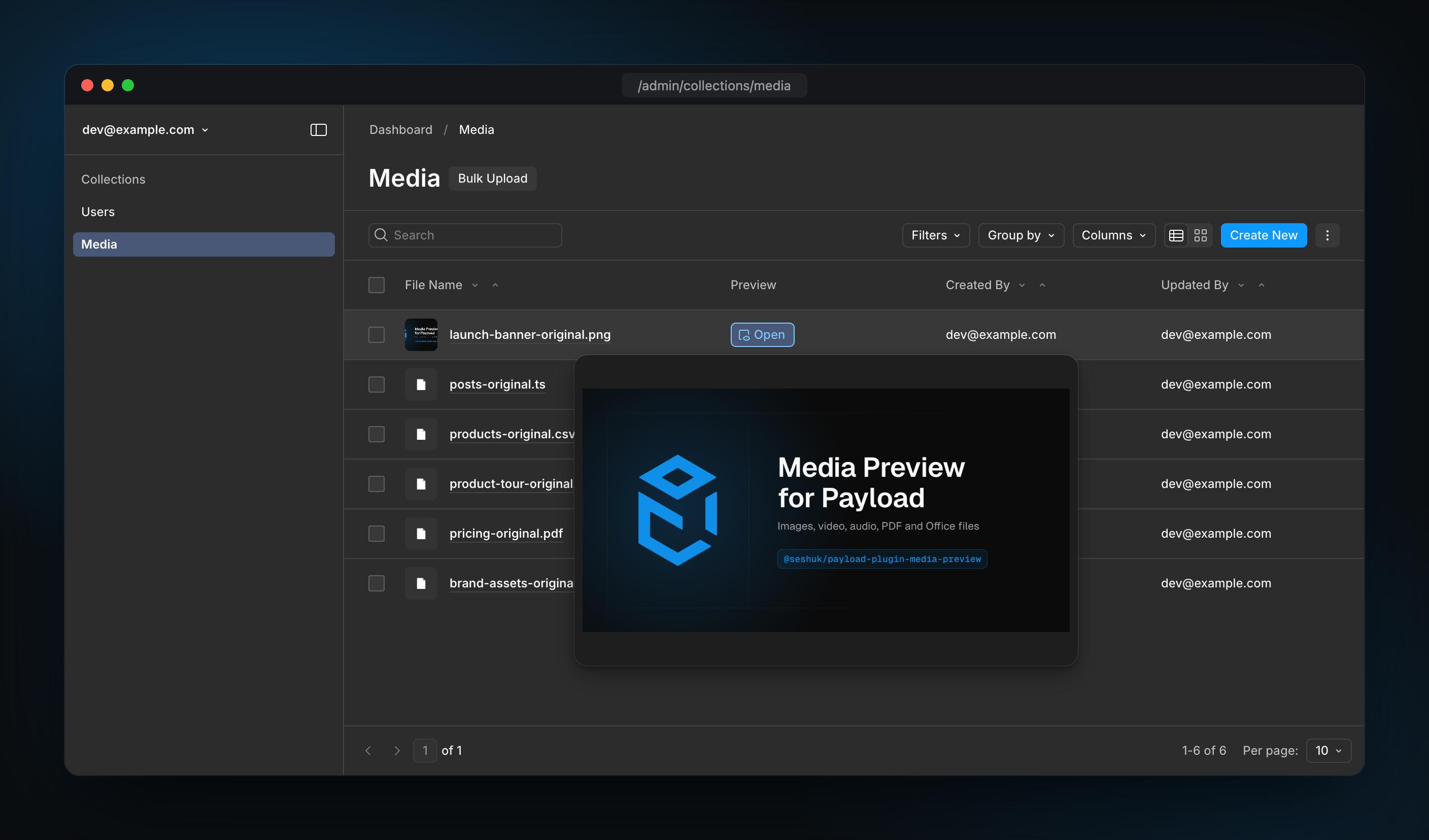
- Preview column in the list view with a popup on desktop and a fullscreen modal on mobile
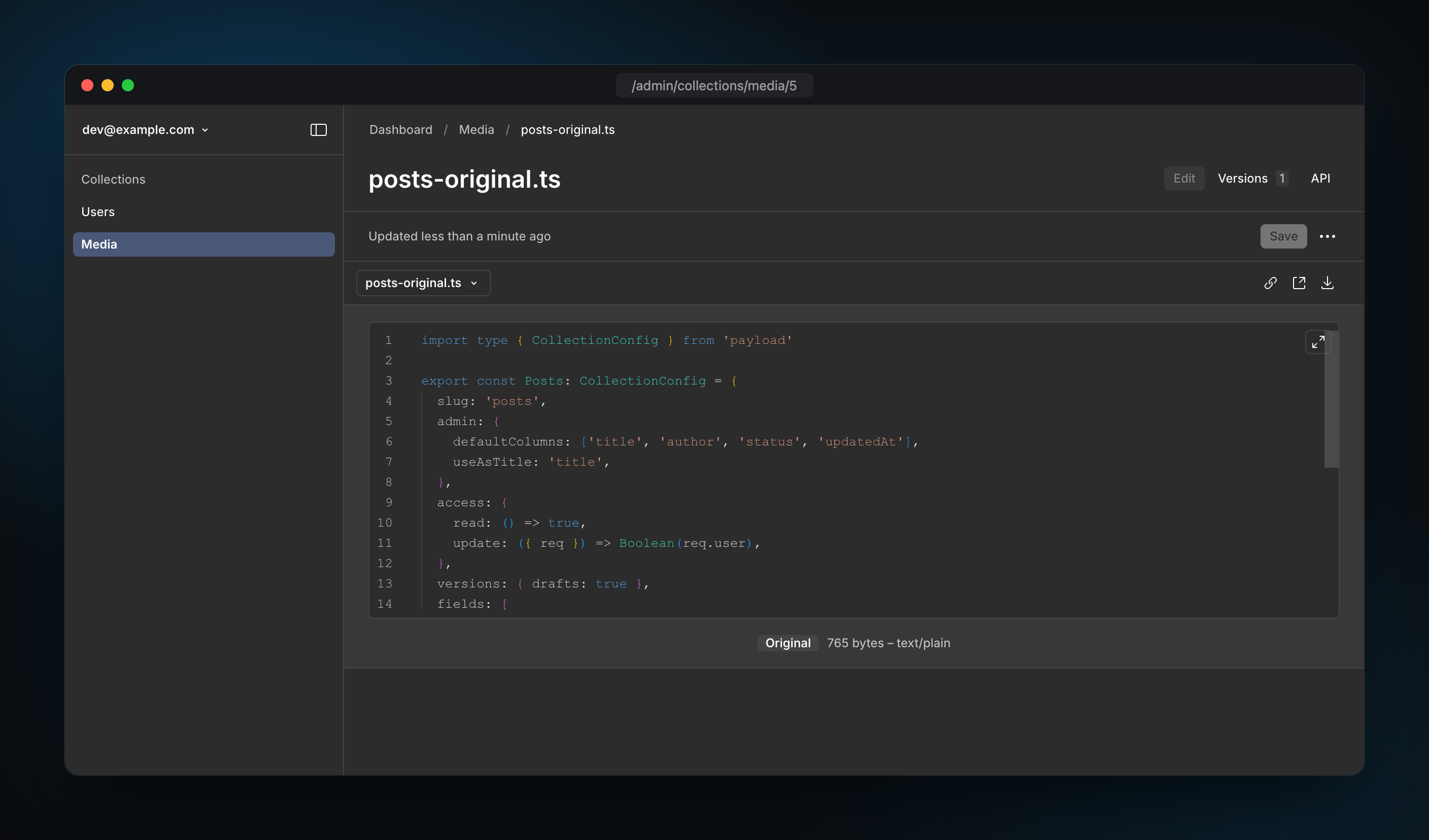
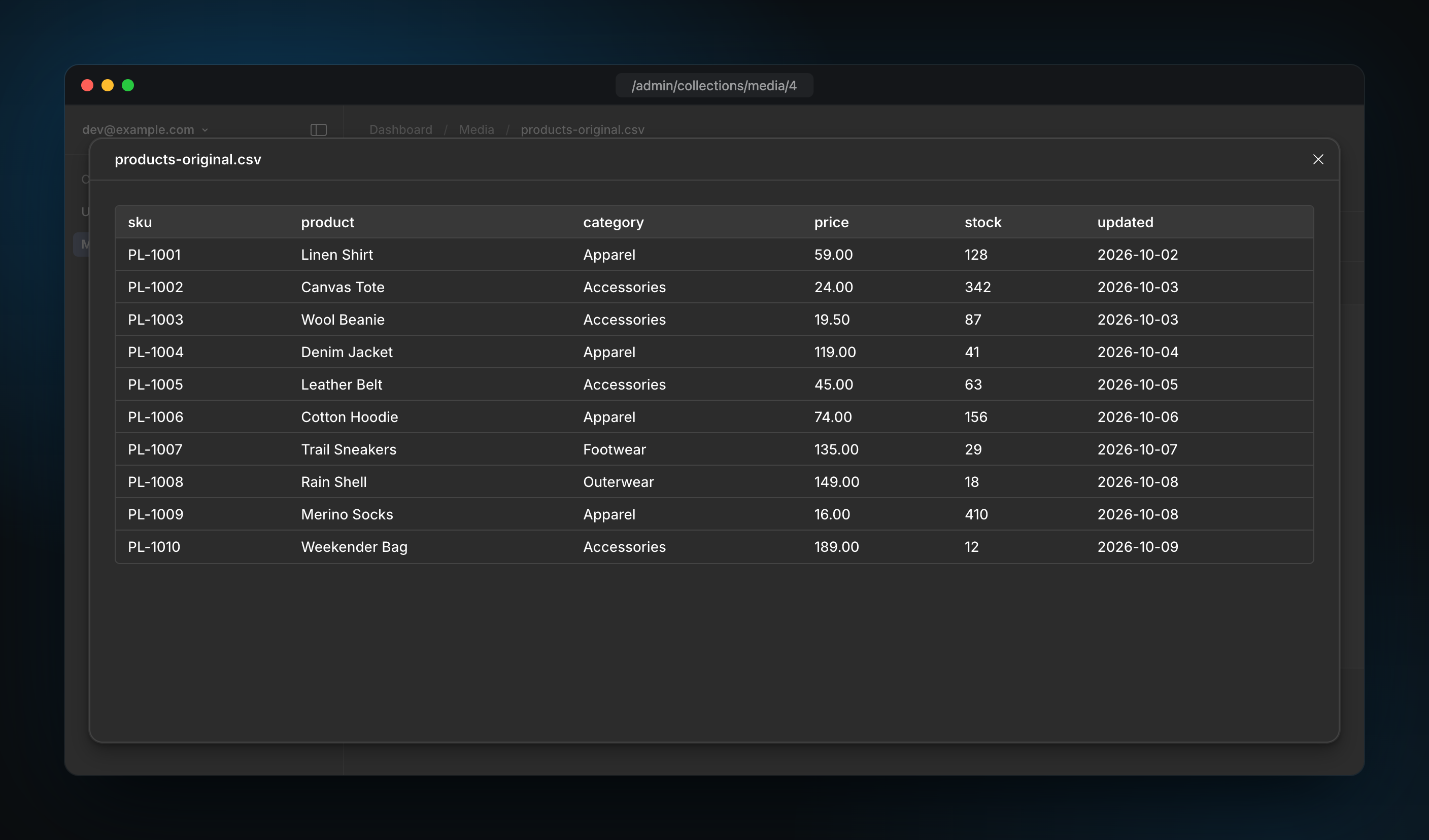
- Code viewer with syntax highlighting and a table viewer for CSV files
- Optional Microsoft and Google external viewers using short-lived signed URLs
- Download card for files with no preview, such as ZIP archives
- Custom adapters to inline-render or open files in a new tab
- Adds no database fields and supports a standalone field
Use cases
- Inspect uploaded code, text and CSV files in the admin panel without downloading them
- Preview Office documents in the media library through an external viewer
- Plug in custom preview components for specialised file types in upload collections
From the author
Payload plugin for previewing images, videos, audio, and documents in the admin panel
Installation
npm i @seshuk/payload-plugin-media-preview13
Stars
0
Forks
0
Open Issues
Today
Last Updated
94
Weekly Downloads
v1.1.1
npm Version
100.8 KB
Unpacked Size
0
Dependencies
Trends (last 90 days)
Trends appear after 7 days of data. Daily snapshots have not started yet.
Trends appear after 7 days of data. Daily snapshots have not started yet.
Each point is npm's rolling 7-day download count.
Health Score
Composite score based on GitHub activity, stars, npm downloads, publish recency, dependency count, and package size.
Badge for your README

[](https://payloaddirectory.dev/plugins/1180321335-root)<a href="https://payloaddirectory.dev/plugins/1180321335-root"><img src="https://payloaddirectory.dev/badge/1180321335-root.svg" alt="Payload Directory"></a>README

Media Preview Plugin for Payload
Preview images, video, audio and documents in the Payload admin panel.





Features
- Edit view previews for files Payload can't show: text, code, CSV, Office and more
- A preview column in the list view
- Optional Microsoft and Google viewers for Office files
- Adapters for your own viewers
- No database fields
Screenshots
The preview column in the list view:
Code with syntax highlighting in the edit view:
A CSV file as a table in the fullscreen modal:
A download card for files with no preview:
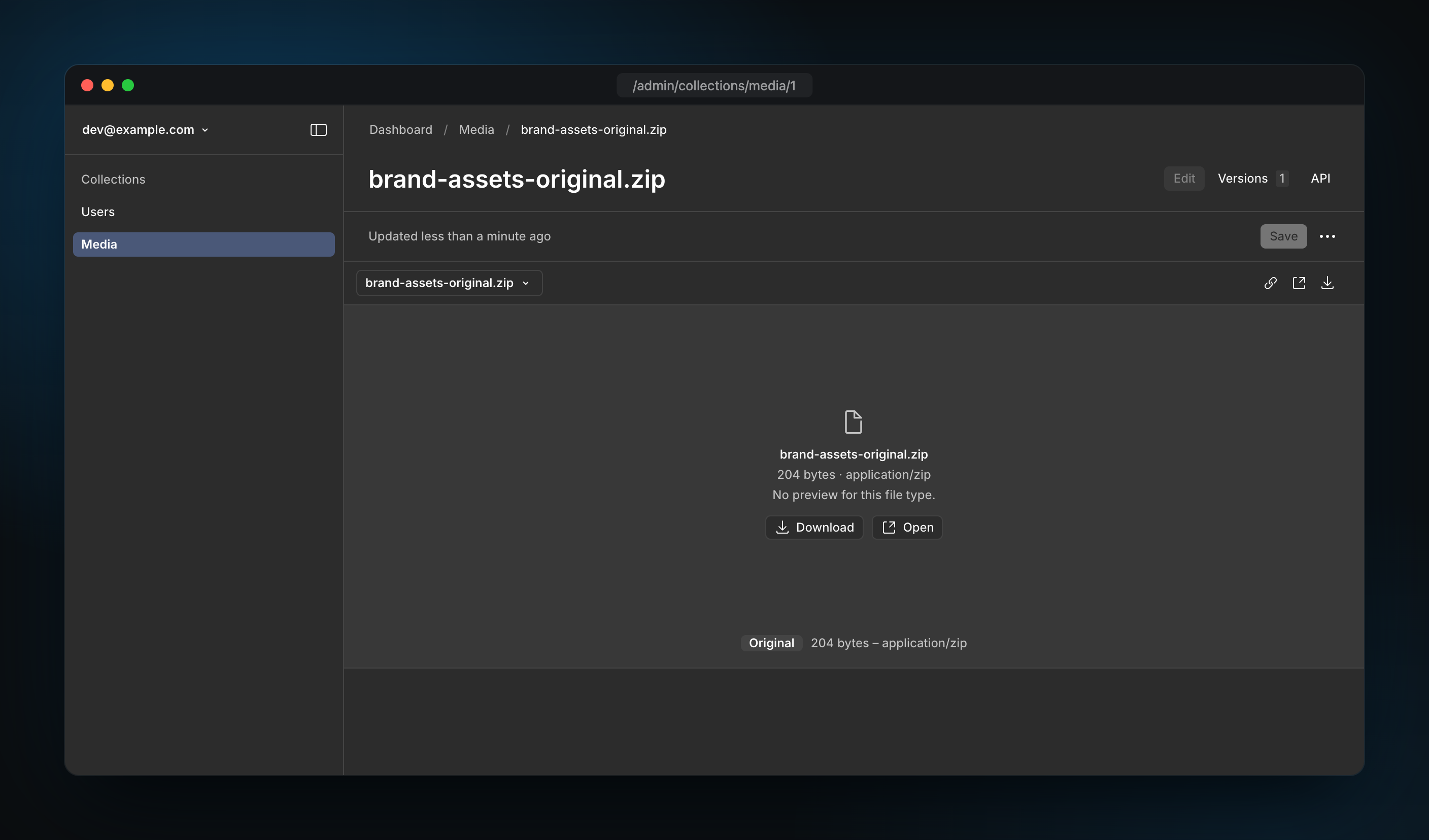
Table of Contents
- Screenshots
- Requirements
- Installation
- Quick Start
- Configuration
- Edit View
- External Viewers
- Adapters
- Standalone Field
- Internationalization
- Telemetry
- Exports
- TypeScript
- Migrating from 1.x
- License
Requirements
- Payload 4, with
@payloadcms/uiand@payloadcms/translationsin the same version - Next.js
>=16.4.0 - React 19
- Node.js
>=24.15.0
Installation
pnpm add @seshuk/payload-plugin-media-preview@beta
# or
npm install @seshuk/payload-plugin-media-preview@beta
# or
yarn add @seshuk/payload-plugin-media-preview@beta
2.x is in beta under the beta npm tag. For Payload 3, use @seshuk/payload-plugin-media-preview@1.
Quick Start
import { mediaPreview } from '@seshuk/payload-plugin-media-preview'
import { buildConfig } from 'payload'

export default buildConfig({
  // ...
  plugins: [
    mediaPreview({
      collections: {
        media: true,
      },
    }),
  ],
})
This adds a preview column to the media list view. The edit view now also previews text, CSV and other files that Payload can't show. Images, video, audio and PDF keep Payload's own preview.
Configuration
Plugin Options
| Option | Type | Default | Description |
|---|---|---|---|
enabled | boolean | true | Enable or disable the plugin |
adapters | MediaPreviewAdapter[] | [] | Global adapters for collections that don't set their own |
collections | Record<string, boolean | MediaPreviewCollectionOptions> | — | Upload collections to preview (false skips one) |
externalViewer | boolean | { office?, google?, expiresIn? } | false | Microsoft and Google viewers for all collections. See External Viewers |
telemetry | boolean | { url? } | true | Anonymous usage telemetry. See Telemetry |
Collection Options
Each collection entry can be true (all defaults), false (skipped) or an object:
| Option | Type | Default | Description |
|---|---|---|---|
adapters | MediaPreviewAdapter[] | — | Per-collection adapters (override global) |
field | boolean | MediaPreviewFieldOptions | true | List column options, or false to skip it (for manual placement) |
filePreview | boolean | true | Show the preview in the edit view. See Edit View |
externalViewer | boolean | { office?, google?, expiresIn? } | global | Overrides the global externalViewer for this collection |
field options:
| Option | Type | Default | Description |
|---|---|---|---|
position | 'first' | 'last' | { after | before } | 'last' | Where to insert the preview field, which sets the column order |
mode | 'auto' | 'fullscreen' | 'auto' | List cell display mode |
contentMode | Partial<MediaPreviewContentMode> | all inline | How the list cell opens each content type ('inline' or 'newTab') |
overrides | Partial<Omit<UIField, 'name' | 'type'>> | — | Payload UI field overrides. You can't change name or type. admin.components is merged, so the plugin Cell stays unless you set your own |
mediaPreview({
  collections: {
    media: true,
    'hero-images': {
      field: {
        mode: 'fullscreen',
        contentMode: { video: 'newTab' },
        position: { after: 'alt' },
      },
    },
  },
})
Display Modes
field.mode sets how the list cell shows a preview. It doesn't change the edit view.
'auto' (default)
Picks the view by device:
| Context | Desktop | Mobile |
|---|---|---|
| Cell (list view) | Floating popup near the cell | Fullscreen modal |
'fullscreen'
Always uses a fullscreen modal, regardless of device.
collections: {
  media: {
    field: { mode: 'fullscreen' },
  },
}
Content Modes
field.contentMode sets how the list cell opens each content type: 'inline' (default) or 'newTab'.
| Mode | Behavior |
|---|---|
'inline' | Show the file in the preview modal |
'newTab' | Open the file URL in a new browser tab |
document covers PDF, text, Office and other documents.
collections: {
  media: {
    field: {
      contentMode: {
        video: 'newTab',
        document: 'newTab',
        image: 'inline',
        audio: 'inline',
      },
    },
  },
}
Field Position
The preview is a ui field. Its place in the fields array sets the column order in the list view. Change it with field.position:
// At the end (default)
field: {
  position: 'last'
}

// At the beginning
field: {
  position: 'first'
}

// After a specific field
field: {
  position: {
    after: 'alt'
  }
}

// Before a specific field
field: {
  position: {
    before: 'description'
  }
}
Use dot paths for fields inside a named group or a named tab:
field: {
  position: {
    after: 'meta.description'
  }
}
Rows, collapsibles and unnamed tabs don't add to the path, so { after: 'alt' } finds alt inside them. A plain name also finds a field inside a group or named tab if no other field has that name. If the name matches no field or more than one, the plugin throws at startup and asks for the full path.
Supported File Types
| Type | Edit view | List cell |
|---|---|---|
Images (image/*) | Payload built-in | <img> |
Video and audio (video/*, audio/*) | Payload built-in | <video> / <audio> |
| Payload built-in | <iframe> | |
Text and code (text/*, JSON, XML, YAML, JavaScript) | Plugin: code viewer | Plugin: code viewer |
CSV (text/csv) | Plugin: table | Plugin: table |
Office (.doc, .docx, .xls, .xlsx, .ppt, .pptx) | Microsoft viewer or card | Microsoft viewer or card |
.psd, .ai/.eps/.ps, .dxf, .pages, .xps | Google viewer or card | Google viewer or card |
Anything else (.zip, unknown types) | Download card | Download card |
The plugin loads text in the browser and always shows it as text, never as HTML. Markdown and HTML files show their source.
Text and code open in Payload's read-only code editor (Monaco, the same one JSON fields use). It highlights JSON (pretty-printed), YAML, XML, CSS, HTML, Markdown, JavaScript, TypeScript, Python, shell and INI/TOML. Plain text and logs have no highlighting. If the editor can't load, the file shows as plain text.
Files over 1 MB show the download card. CSV shows the first 1000 rows. If the file size is unknown, the plugin shows the first 1 MB.
Browsers often upload code files as application/octet-stream or with no type. For these files the plugin uses the extension: .ts, .tsx, .js, .jsx, .mjs, .cjs, .py, .sh, .json, .yaml, .yml, .toml, .ini, .conf, .env (and .env.example), .log, .md, .txt, .csv, .css and .xml show as text. Other files with no type get the download card.
Payload blocks some file types, such as .html, .htm, .js, .py, .rb, .php and .pl. To allow them, set upload.allowRestrictedFileTypes: true or list the types in upload.mimeTypes. See RESTRICTED_FILE_EXT_AND_TYPES in Payload. Once Payload accepts these files, the plugin previews them.
The download card shows the file name, size and type, with Download and Open buttons. It also says why there is no preview: the viewer is off, the file is too large, or the server isn't public.
The Microsoft viewer doesn't accept OpenDocument files (.odt, .ods, .odp), so the plugin doesn't send them there.
Edit View
In the edit view, Payload shows the file at the top of the page. Payload's upload.admin.components.filePreview option sets which component shows each file type. The plugin fills this option for you:
- Text, CSV, Office and other types Payload can't show get the plugin preview.
- Types in your adapters'
mimeTypesget the plugin preview too. - All other types get the download card instead of Payload's empty placeholder (the
'*'key). - Images, video, audio and PDF keep Payload's own preview, unless an adapter lists them in
mimeTypes.
If you set filePreview yourself, your value wins:
- A single component (a string or
{ path }): the plugin adds nothing. - A map with a
'*'key: the plugin adds nothing, because your'*'already covers every type. - Any other map: your keys stay. The plugin skips its keys that match yours, exactly or by category (
text/*coverstext/plain).
Set filePreview: false on a collection to turn off the edit view preview.
Plugin previews have a fullscreen button. It opens the same modal as the list cell.
External Viewers
Office files can open in the Microsoft Office viewer. .psd, .ai, .eps, .ps, .dxf, .pages and .xps files can open in the Google Docs viewer. Both are outside services that download the file from a URL, so they are off by default.
Privacy: When a viewer is on, Microsoft or Google downloads the file and may keep a copy, sometimes for about a day. Turn it on only for files you may share with them.
mediaPreview({
  externalViewer: { office: true }, // all collections: Microsoft viewer only
  collections: {
    media: true,
    contracts: { externalViewer: false }, // never send these files out
    designs: { externalViewer: { google: true, expiresIn: 300 } },
  },
})
| Option | Type | Default | Description |
|---|---|---|---|
office | boolean | false | Microsoft viewer for Office formats |
google | boolean | false | Google viewer for the other document formats |
expiresIn | number | 600 | Signed URL lifetime in seconds. Adapter signUrl gets it too |
true turns on both viewers. A collection value replaces the global one.
The viewer needs a URL it can reach:
- Direct URL (public bucket, CDN,
generateFileURL): the viewer gets the file URL as is. - Payload file route (
{serverURL}/api/{collection}/file/{filename}, which checks access): the plugin signs a short-lived URL to its own endpoint. The viewer never gets your session. - Adapter
signUrl: if an adapter returns a public URL, the plugin uses it instead. See Signed URLs.
The plugin shows the download card instead of a viewer when:
- The viewer can't reach the file: the file URL, or
serverURLfor the Payload file route, is missing,localhostor a private IP address, and no adaptersignUrlreturns a public URL. You can't test external viewers onlocalhost. - The file is too large for the viewer: Microsoft takes up to 10 MB, or 5 MB for Excel files. Google takes up to 25 MB.
When a collection turns on an external viewer, the plugin adds two endpoints:
| Endpoint | Auth | Description |
|---|---|---|
GET /api/media-preview/url?collection=&id= | Admin session | Checks read access to the document and its file, then returns { url } for the viewer |
GET /api/media-preview/file/:token/:filename | Signed token | Streams one file. The token holds the collection, document ID, file name and expiry |
The file name is in the URL because the viewers detect the file type from its extension. It also ends the link when someone uploads a new file to the document: the name no longer matches, so the old URL returns 404.
The token is an HMAC-SHA256 signature. Its key comes from the Payload secret. The file endpoint reads the file through the collection's storage adapter, or from staticDir. It responds with Cache-Control: no-store, Content-Disposition: inline and X-Content-Type-Options: nosniff. An expired or invalid token returns 404.
The sign endpoint checks file access like Payload's file route: it calls your read access with isReadingStaticFile: true, and a returned query must match the document and its file name. With drafts, both endpoints use the latest draft, which is what the edit view shows. The query runs against the saved document, so a file uploaded only to a draft opens only when your read access returns true.
If a storage handler redirects to a signed storage URL (for example S3 signedDownloads), the file endpoint downloads that URL itself. It follows only https: URLs, or http: when the request also came over http: (local development). It follows only one redirect and stops after 30 seconds.
Adapters
Adapters let you change how files are previewed. If an adapter matches a document, it wins over the built-in viewers and contentMode.
Each adapter has a resolve() function that returns one of two modes:
{ mode: 'inline', props }: shows your component in the preview modal{ mode: 'newTab', url }: opens a link in a new browser tab
Component is only needed for inline mode.
Adapters always run in the list cell. In the edit view, the plugin preview shows only for its own types and the types in your adapters' mimeTypes. Other types get Payload's own preview, and adapters don't run. If resolve() returns null, the plugin shows its default viewer.
| Field | Type | Description |
|---|---|---|
name | string | Unique adapter name |
Component | string | Component path for inline results |
resolve | (args) => result | null | Promise<…> | Returns how to preview a document, or null to skip. Can be async |
mimeTypes | string[] | Types the adapter shows in the edit view, for example ['video/*', 'audio/*'] |
signUrl | (args) => string | null | Promise<…> | Public URL for the external viewers. See Signed URLs |
Examples
import type { IframeViewerProps, MediaPreviewAdapter } from '@seshuk/payload-plugin-media-preview'

// Inline — custom component in modal
const videoAdapter: MediaPreviewAdapter = {
  name: 'video-embed',
  Component: 'my-pkg/client#VideoPlayer',
  resolve: ({ doc }) => {
    if (!doc.videoId) return null
    return {
      mode: 'inline',
      props: { videoId: doc.videoId, autoplay: false },
    }
  },
}

// NewTab — opens link in new browser tab (no Component needed)
const externalPreview: MediaPreviewAdapter = {
  name: 'external',
  resolve: ({ url }) => {
    if (!url) return null
    return {
      mode: 'newTab',
      url: `https://preview.service.com/?file=${encodeURIComponent(url)}`,
    }
  },
}

// Built-in viewer with typed props via satisfies
const iframeAdapter: MediaPreviewAdapter = {
  name: 'iframe',
  Component: '@seshuk/payload-plugin-media-preview/client#IframeViewer',
  resolve: ({ url }) => {
    if (!url) return null
    return {
      mode: 'inline',
      props: { src: url, allowFullScreen: true } satisfies IframeViewerProps,
    }
  },
}
Signed URLs
For files in private storage, an adapter can return its own short-lived URL for the external viewers. signUrl gets { doc, url, expiresIn, req }. The first adapter that returns a public URL wins, and the plugin uses it instead of the file URL. Return null to try the next adapter.
const privateBucket: MediaPreviewAdapter = {
  name: 'private-bucket',
  resolve: () => null,
  signUrl: async ({ doc, expiresIn }) =>
    typeof doc.filename === 'string' ? await createSignedUrl(`media/${doc.filename}`, expiresIn) : null,
}
createSignedUrl stands for your storage SDK. Storage adapters such as @seshuk/payload-storage-bunny can use the same options: mimeTypes: ['video/*', 'audio/*'] to show their player in the edit view, and signUrl for storage URLs with a token.
Registering Adapters
mediaPreview({
  adapters: [videoAdapter], // global adapters
  collections: {
    media: {
      adapters: [externalPreview], // per-collection adapters
    },
  },
})
A collection uses its own adapters if it sets them, and the global adapters if not. It never uses another collection's adapters, except in a standalone field without adapterNames.
The plugin finds adapters by name, so each name must belong to one adapter. You can reuse the same adapter object in several collections. Two different adapters with the same name throw an error at startup.
How Adapters Work
- When a document is loaded, the collection's adapters are tried in order
- Each adapter's
resolve()function receives{ doc, url, mimeType, collectionSlug, payload, user }and can return a Promise - The first adapter to return a non-null value wins
- For
inlineresults, thepropsare passed to the adapter'sComponent - For
newTabresults, clicking the preview opens the URL in a new browser tab - If no adapter matches, the default built-in viewer is used
In the edit view, user is the logged-in user. In the list cell it is always undefined, because Payload doesn't pass the user to cells. Use payload for Local API calls.
Note:
resolve()runs on every render, also for each list row, and its result goes into the page. Anyone who can see the document gets anewTabURL, without the file access check. Don't return a presigned URL of a private file there. For the external viewers, usesignUrl: it runs only on open, after the access check.
Built-in Viewer Components
The plugin exports four built-in viewer components that you can use in adapters with inline mode:
| Component | Import Path | Props Type |
|---|---|---|
ImageViewer | @seshuk/payload-plugin-media-preview/client#ImageViewer | ImageViewerProps |
VideoViewer | @seshuk/payload-plugin-media-preview/client#VideoViewer | VideoViewerProps |
AudioViewer | @seshuk/payload-plugin-media-preview/client#AudioViewer | AudioViewerProps |
IframeViewer | @seshuk/payload-plugin-media-preview/client#IframeViewer | IframeViewerProps |
The plugin sets the size of the preview, so you don't need to. Your own component fills the preview area in the popup, the modal and the edit view. The built-in viewers look the same as the plugin's own previews. They always have the plugin class and add your className after it: media-preview-viewer__media for ImageViewer and VideoViewer, media-preview-viewer__audio for AudioViewer and media-preview-viewer__frame for IframeViewer.
Adapter Props Reference
ImageViewerProps
| Prop | Type | Required |
|---|---|---|
src | string | Yes |
alt | string | No |
className | string | No |
VideoViewerProps
| Prop | Type | Required |
|---|---|---|
src | string | Yes |
mimeType | string | No |
title | string | No |
controls | boolean | No |
autoPlay | boolean | No |
loop | boolean | No |
muted | boolean | No |
preload | 'auto' | 'metadata' | 'none' | No |
className | string | No |
AudioViewerProps
| Prop | Type | Required |
|---|---|---|
src | string | Yes |
mimeType | string | No |
title | string | No |
controls | boolean | No |
autoPlay | boolean | No |
loop | boolean | No |
muted | boolean | No |
preload | 'auto' | 'metadata' | 'none' | No |
className | string | No |
IframeViewerProps
| Prop | Type | Required |
|---|---|---|
src | string | Yes |
title | string | No |
allow | string | No |
allowFullScreen | boolean | No |
loading | 'eager' | 'lazy' | No |
className | string | No |
Standalone Field
The plugin adds the preview field to the listed collections for you. The field only adds the list view column. To place it yourself, use mediaPreviewField().
With field: false
Set field: false on a collection to skip the automatic field but keep its adapters and translations. Then add the field yourself. The edit view preview still works:
import type { MediaPreviewAdapter } from '@seshuk/payload-plugin-media-preview'
import { mediaPreview, mediaPreviewField } from '@seshuk/payload-plugin-media-preview'

const videoAdapter: MediaPreviewAdapter = {
  name: 'video-embed',
  Component: 'my-pkg/client#VideoPlayer',
  resolve: ({ doc }) => {
    if (!doc.videoId) return null
    return { mode: 'inline', props: { videoId: doc.videoId } }
  },
}

export default buildConfig({
  collections: [
    {
      slug: 'media',
      upload: true,
      fields: [
        { name: 'alt', type: 'text' },
        mediaPreviewField({
          adapterNames: ['video-embed'],
          mode: 'fullscreen',
        }),
        { name: 'caption', type: 'textarea' },
      ],
    },
  ],
  plugins: [
    mediaPreview({
      collections: {
        media: {
          adapters: [videoAdapter],
          field: false, // don't inject — already added manually above
        },
      },
    }),
  ],
})
Without collection registration
If you don't need per-collection adapters, leave the collection out of the plugin options and use global adapters:
import { mediaPreview, mediaPreviewField } from '@seshuk/payload-plugin-media-preview'

export default buildConfig({
  collections: [
    {
      slug: 'media',
      upload: true,
      fields: [{ name: 'alt', type: 'text' }, mediaPreviewField({ mode: 'fullscreen' })],
    },
  ],
  plugins: [
    mediaPreview({
      collections: {},
    }),
  ],
})
You still need the plugin, because it registers the viewer components and translations. Collections that are not listed get no edit view preview. To choose adapters, pass adapterNames to mediaPreviewField(). Register those adapters in the plugin's global or collection adapters. Without adapterNames, the cell tries all registered adapters.
The list view loads only the fields of its visible columns. For listed collections, the plugin loads the whole document when the preview column is visible. The cell then gets the file data and every field your adapters read. Unlisted collections don't get this, and their cell can show —. List them with field: false to fix it.
Internationalization
The plugin has translations for 44 locales. It merges them into your Payload i18n config under the @seshuk/payload-plugin-media-preview namespace.
Supported locales: ar, az, bg, bn (BD/IN), ca, cs, da, de, en, es, et, fa, fr, he, hr, hu, hy, id, is, it, ja, ko, lt, lv, my, nb, nl, pl, pt, ro, rs (Cyrillic/Latin), ru, sk, sl, sv, ta, th, tr, uk, vi, zh, zhTw.
Telemetry
The plugin sends a small anonymous usage report, at most once a day. It shows the maintainer which versions and features people use. Telemetry is on by default. On the first run, the plugin logs how to turn it off.
The report has the major versions of the plugin, Payload and Node, the OS, a project ID and the features in use. The project ID is sha256(payload.secret + source). The source is the git remote URL, the app's package.json name, serverURL or the working directory. Only the hash leaves your server. The plugin never sends secrets, IP addresses, keys, file names, URLs or collection names.
features has booleans only:
| Flag | Meaning |
|---|---|
adapters | At least one adapter is registered |
adapterInline | An adapter has a Component |
adapterMimeTypes | An adapter sets mimeTypes |
adapterSignUrl | An adapter has signUrl |
collectionOverrides | A collection uses options instead of true |
externalViewerOffice | The Microsoft viewer is on for a collection |
externalViewerGoogle | The Google viewer is on for a collection |
field | The plugin adds the list view column to a collection |
fieldFullscreen | A column uses mode: 'fullscreen' |
fieldContentModeNewTab | A column opens a content type in a new tab |
fieldPosition | A column sets position |
fieldOverrides | A column sets overrides |
filePreview | The edit view preview is on for a collection |
Telemetry is off when any of these is true:
telemetry: falsein the plugin options or in the Payload config;DO_NOT_TRACKorMEDIA_PREVIEW_TELEMETRY_DISABLEDis set to a truthy value;CIis set orNODE_ENVistest.
To send reports to your own collector, pass telemetry: { url: 'https://telemetry.example.com/v1/collect' }. Reports never block startup or throw errors, and they time out after 2 seconds.
Exports
The package provides three entry points:
| Entry Point | Description | Usage |
|---|---|---|
@seshuk/payload-plugin-media-preview | Plugin function and all public types | Server-side config |
@seshuk/payload-plugin-media-preview/client | Viewer components (Image, Video, Audio, Iframe) | 'use client' components |
@seshuk/payload-plugin-media-preview/rsc | Server components (MediaPreviewCell, MediaPreviewFile) | React Server Components |
TypeScript
All types are exported from the main entry point:
import type {
  AudioViewerProps,
  IframeViewerProps,
  ImageViewerProps,
  InsertPosition,
  MediaPreviewAdapter,
  MediaPreviewAdapterInlineResult,
  MediaPreviewAdapterNewTabResult,
  MediaPreviewAdapterResolveArgs,
  MediaPreviewAdapterResolveResult,
  MediaPreviewAdapterSignUrlArgs,
  MediaPreviewCollectionOptions,
  MediaPreviewContentMode,
  MediaPreviewContentModeType,
  MediaPreviewContentType,
  MediaPreviewExternalViewer,
  MediaPreviewFieldOptions,
  MediaPreviewMode,
  MediaPreviewPlugin,
  MediaPreviewPluginOptions,
  VideoViewerProps,
} from '@seshuk/payload-plugin-media-preview'
Migrating from 1.x
2.x needs Payload 4, Next.js 16.4+ and Node.js 24.15+. Payload 3 users stay on 1.x.
-
modeandcontentModemove from the collection intofield. The old keys throw at startup, for examplecollections.media.mode was renamed to collections.media.field.mode.// 1.x media: { mode: 'fullscreen', contentMode: { video: 'newTab' } } // 2.x media: { field: { mode: 'fullscreen', contentMode: { video: 'newTab' } } } -
Two different adapters with the same
namethrow at startup. In 1.x, the plugin kept the first one and used it in every collection. Give each adapter a unique name. -
contentModenow only changes the list cell. For example,contentMode: { document: 'newTab' }no longer opens documents in a new tab from the edit view. -
field.overrides.admin.componentsis now merged with the plugin's components. In 1.x, setting any component (for example aLabel) removed the previewCell. Now theCellstays unless you set your own. -
Adapter
resolve()can be async. It also getscollectionSlug,payloadanduser, next todoc,urlandmimeType. Sync adapters still work. If you calladapter.resolve()yourself, for example in tests,awaitit and pass the new required arguments.// 1.x resolve: ({ doc }) => ({ mode: 'newTab', url: publicUrl(doc) }) // 2.x, can now be async and use payload resolve: async ({ doc, payload }) => ({ mode: 'newTab', url: await getPublicUrl(payload, doc) }) -
field.positionthrows if no field or more than one field matches the name. Named tabs use their name in the path (seo.title), not the tab index (myTabs.0.title). -
The Preview button in the edit view and its
Fieldcomponent are removed. The preview now shows at the top of the edit view, through Payload'supload.admin.components.filePreview. See Edit View. -
mediaPreviewField()only adds the list view column. -
PDF and text files no longer use the Google viewer. PDF opens in the browser's viewer, and the plugin renders text itself.
-
External viewers (Microsoft, Google) are off by default. Set
externalViewerto turn them on. -
contentMode: { document: 'newTab' }opens the file URL, not the external viewer. -
Removed exports:
MediaPreviewfrom/rscandMediaPreviewFieldClientfrom/client./rscnow exportsMediaPreviewFile. -
MediaPreviewPluginConfig,MediaPreviewCollectionConfigandMediaPreviewFieldConfigare renamed toMediaPreviewPluginOptions,MediaPreviewCollectionOptionsandMediaPreviewFieldOptions. -
The plugin sends anonymous usage telemetry. Set
telemetry: falseorMEDIA_PREVIEW_TELEMETRY_DISABLED=1to turn it off. See Telemetry. -
Run
payload generate:importmapafter upgrading.
Related plugins
- @seshuk/payload-storage-bunny — store files and stream video from Payload on Bunny.net's global CDN.
- @seshuk/payload-plugin-janitor — find orphaned files and unused documents, then delete only what you approve.
- @seshuk/payload-plugin-sitemap — sitemaps for Payload, stored with any storage adapter.
- @seshuk/payload-plugin-openapi — OpenAPI 3.0, 3.1 and 3.2 spec for Payload, with Scalar or Swagger UI.
Support
Bug reports, feature requests, and questions go to GitHub Issues. For Payload itself, see the Payload docs and Discord.
License
MIT — see LICENSE.
Credits
Built by Maxim Seshuk for the Payload community.
If you find this plugin useful, buy me a coffee.
Topics
Similar plugins

payload media
Search Unsplash, Pexels and Pixabay stock images and videos from Payload upload collections
680/wk8v4

mux video
Mux video upload and playback for Atomic Payload, wrapping the Oversight Studio mux-video plugin
610/wk37v3
payload mux
Videos collection for Payload that uploads directly to Mux with public or signed playback
560/wk18v3

payloadcms plugin image optimizer
Client-side pre-resize, ThumbHash blur placeholders, filename strategies and bulk regeneration for Payload image uploads
480/wk27v3

sirv payload
Use Sirv as a media source in the Payload admin and render assets on the frontend with @sirv/react
250v?

mux video
Upload and manage Mux videos from the Payload admin with public or signed playback
872.7k/wk83v3