
payload plugin google analytics
From the author
Google Analytics 4 dashboard widgets plugin for Payload
Installation
npm i @zubricks/plugin-google-analytics7
Stars
1
Forks
0
Open Issues
2 months ago
Last Updated
38
Weekly Downloads
v1.1.0
npm Version
427.9 KB
Unpacked Size
1
Dependencies
Trends (last 90 days)
Trends appear after 7 days of data. Daily snapshots have not started yet.
Trends appear after 7 days of data. Daily snapshots have not started yet.
Each point is npm's rolling 7-day download count.
Health Score
Composite score based on GitHub activity, stars, npm downloads, publish recency, dependency count, and package size.
Badge for your README

[](https://payloaddirectory.dev/plugins/1140782943-root)<a href="https://payloaddirectory.dev/plugins/1140782943-root"><img src="https://payloaddirectory.dev/badge/1140782943-root.svg" alt="Payload Directory"></a>README
Google Analytics Dashboard Plugin for Payload CMS
Display Google Analytics 4 (GA4) metrics directly in your Payload Admin dashboard with beautiful, real-time widgets.
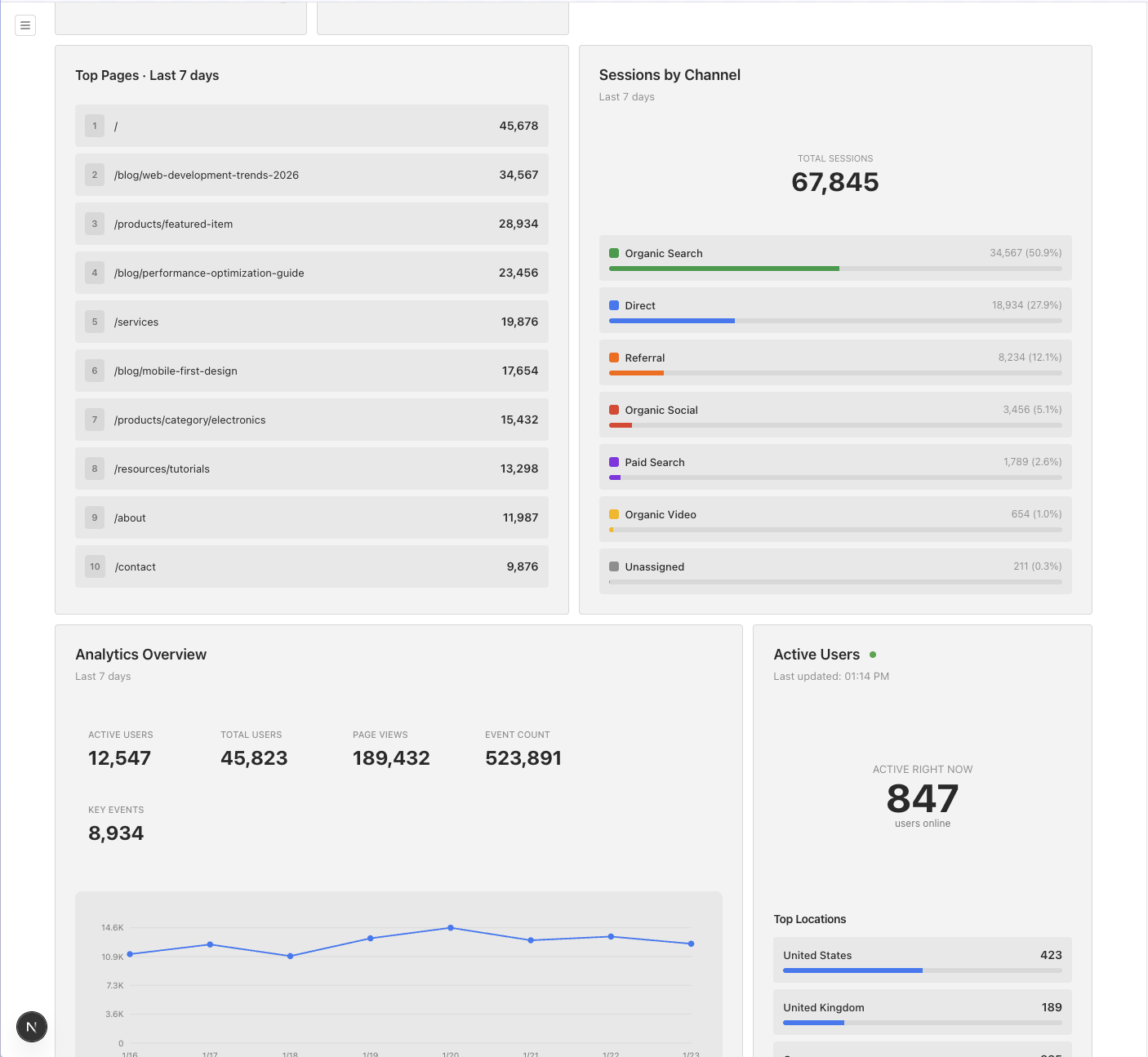
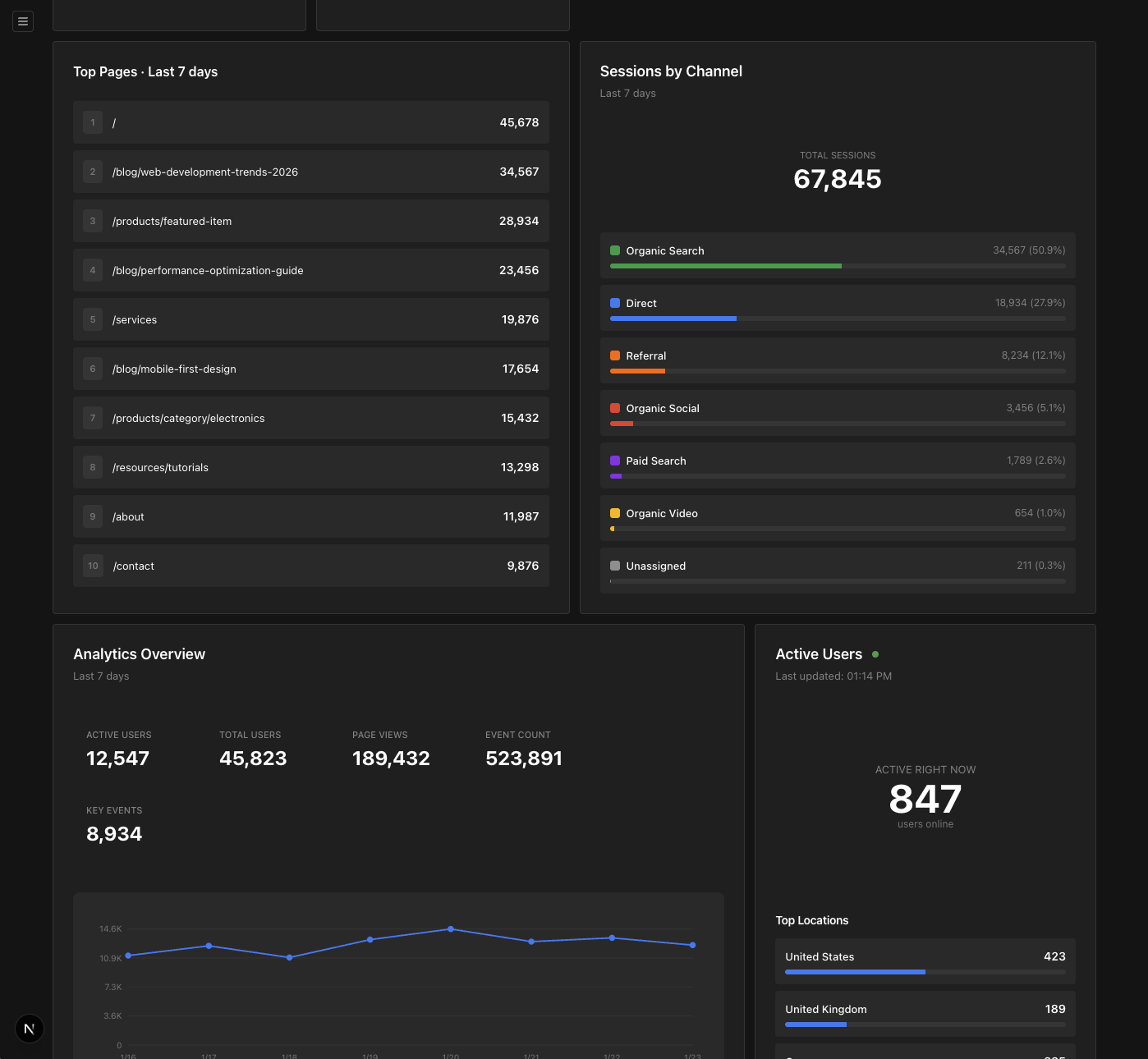
Features
- Analytics Overview: Active users, total users, page views, event count, and key events with a 7-day trend chart
- Top Pages: Most visited pages with view counts
- Active Users: Real-time active users with top 3 locations (updates every 60 seconds)
- Channel Groups: Sessions by traffic channel with percentage breakdown
- Dark Mode Support: All widgets work seamlessly with Payload's light and dark themes
- Demo Mode: Display mock data for screenshots and videos without exposing real analytics
Installation
1. Install the Plugin
npm install @zubricks/plugin-google-analytics
# or
yarn add @zubricks/plugin-google-analytics
# or
pnpm add @zubricks/plugin-google-analytics
2. Re-export the API Routes
The plugin ships three API route handlers. Rather than copying them into your app (which goes stale on every plugin update), create three thin route files that re-export the handlers from the package. Updates then flow in automatically when you bump the plugin version.
Create these files in your Next.js app:
// src/app/api/analytics/pageviews/route.ts
export { GET } from '@zubricks/plugin-google-analytics/api/pageviews'
// src/app/api/analytics/active-users/route.ts
export { GET } from '@zubricks/plugin-google-analytics/api/active-users'
// src/app/api/analytics/channel-groups/route.ts
export { GET } from '@zubricks/plugin-google-analytics/api/channel-groups'
These files never need to change again — the handler logic lives in the package.
3. Google Cloud Setup
Enable Google Analytics Data API
- Go to Google Cloud Console
- Select or create a project
- Navigate to "APIs & Services" > "Library"
- Search for "Google Analytics Data API"
- Click "Enable"
Create Service Account
- Go to "APIs & Services" > "Credentials"
- Click "Create Credentials" > "Service Account"
- Give it a name (e.g., "Payload Analytics Reader")
- Click "Create and Continue"
- Grant the role "Viewer" (optional)
- Click "Done"
Download Service Account Key
- Click on the service account you just created
- Go to the "Keys" tab
- Click "Add Key" > "Create new key"
- Choose "JSON" format
- Click "Create" (the JSON file will download automatically)
2. Google Analytics Setup
Add Service Account to GA4
- Go to Google Analytics
- Navigate to "Admin" (gear icon in the bottom left)
- In the "Account" column, click "Account Access Management"
- Click the "+" button in the top right
- Click "Add users"
- Enter the service account email (found in the JSON file as
client_email) - Select "Viewer" role
- Uncheck "Notify new users by email"
- Click "Add"
Get Your Property ID
- In Google Analytics, go to "Admin"
- In the "Property" column, click "Property Settings"
- Copy your "Property ID" (it looks like
123456789)
3. Configure Environment Variables
Add the following to your .env or .env.local:
# Google Analytics Property ID (from GA4 property settings)
GA_PROPERTY_ID=123456789

# Base64 encoded Google Service Account credentials
# To encode the JSON file, run this command in your terminal:
# cat path/to/your-service-account-key.json | base64
GA_CREDENTIALS=<base64-encoded-json>

# Optional: Enable demo mode (default: false)
GA_USE_DEMO_DATA=false
Encoding the Service Account JSON
Run this command to base64 encode your service account JSON file:
cat path/to/your-service-account-key.json | base64
Copy the output and paste it as the value for GA_CREDENTIALS.
macOS/Linux shortcut to copy directly to clipboard:
cat path/to/your-service-account-key.json | base64 | pbcopy
5. Add Plugin to Payload Config
import { googleAnalytics } from '@zubricks/plugin-google-analytics'

export default buildConfig({
  // ... other config
  plugins: [
    googleAnalytics({
      // Optional: Configure which widgets to enable
      enabledWidgets: ['analytics-overview', 'top-pages', 'active-users', 'channel-groups'],

      // Optional: Define default dashboard layout
      defaultLayout: [
        {
          widgetSlug: 'analytics-overview',
          width: 'medium',
        },
        {
          widgetSlug: 'top-pages',
          width: 'full',
        },
        {
          widgetSlug: 'active-users',
          width: 'x-small',
        },
        {
          widgetSlug: 'channel-groups',
          width: 'x-small',
        },
      ],

      // Optional: Override environment variables
      // propertyId: '123456789',
      // credentials: 'base64-encoded-json',
      // useDemoData: false,
    }),
  ],
})
Configuration Options
Plugin Config
| Option | Type | Default | Description |
|---|---|---|---|
propertyId | string | process.env.GA_PROPERTY_ID | Google Analytics GA4 Property ID |
credentials | string | process.env.GA_CREDENTIALS | Base64 encoded service account JSON |
useDemoData | boolean | process.env.GA_USE_DEMO_DATA === 'true' | Enable demo mode to display mock data |
enabledWidgets | array | All widgets | Array of widget slugs to enable |
defaultLayout | array | undefined | Default dashboard layout configuration |
Available Widgets
analytics-overview- Metrics overview with trend chart (minWidth:medium)top-pages- Top 10 most visited pages (minWidth:medium)active-users- Real-time active users by location (minWidth:x-small)channel-groups- Sessions by traffic channel (minWidth:x-small)
Widget Width Options
x-small: 25% widthsmall: 33.3% widthmedium: 50% widthlarge: 66.7% widthx-large: 75% widthfull: 100% width
Demo Mode
Perfect for creating screenshots, videos, or development without exposing real analytics data.
Enable demo mode in your environment variables:
GA_USE_DEMO_DATA=true
Or in the plugin configuration:
googleAnalytics({
  useDemoData: true,
})
When enabled, all widgets display realistic mock data without connecting to Google Analytics.
API Endpoints
The plugin provides three API endpoints:
GET /api/analytics/pageviews- Analytics overview and top pages dataGET /api/analytics/active-users- Real-time active usersGET /api/analytics/channel-groups- Sessions by channel
All endpoints automatically respect the GA_USE_DEMO_DATA environment variable.
Troubleshooting
"Google Analytics not configured" error
Make sure both GA_PROPERTY_ID and GA_CREDENTIALS environment variables are set correctly.
"Failed to get access token" error
- Verify your service account JSON is properly base64 encoded
- Check that the service account has been added to your Google Analytics property
- Ensure the Google Analytics Data API is enabled in your Google Cloud project
"GA4 API request failed" error
- Verify your
GA_PROPERTY_IDis correct - Check that the service account has "Viewer" access to the property
- Make sure you're using a GA4 property (not Universal Analytics)
Data not showing
- Ensure your website has the GA4 tracking code installed
- Verify there's actual traffic data in your GA4 property
- Check the browser console for any error messages
- Make sure you've restarted your development server after adding environment variables
Widgets not appearing
- Check that the plugin is added to the
pluginsarray in your Payload config - Verify the
ComponentPathcan resolve correctly - Check browser console for any import errors
Development
Running Locally
The plugin automatically uses environment variables by default, making it easy to develop locally:
- Set up your
.env.localwith GA credentials - Add the plugin to your Payload config
- Run your development server
- Widgets will appear in the dashboard
License
MIT
Credits
Built with Payload CMS
Tags
Similar plugins

payload plugin analytics
GA4-backed analytics dashboard inside the Payload admin with client-side tracking for Next.js front ends
58152/wk29v3

payload plugin ga4 ecommerce
GA4 reporting dashboards and per-record analytics tabs inside the Payload admin panel
5026/wk10v3

payload dashboard analytics
Show Plausible or Google Analytics data as widgets on the Payload dashboard, collections and globals
4361/wk185v1
payload plugin ab
A/B testing for Payload pages with admin-managed variants and edge routing through Next.js middleware
71133/wk29v3

tracking
Tracking global and React providers for PostHog, Google Tag Manager and Vercel Analytics
581/wk37v3

payload posthog
PostHog integration for Payload with event capture, feature flags, error tracking and admin session replay
482/wk1v3